

Refunding Stripe Donations
Overview
Occasionally a participant will make a donation when they meant to register for the race. When this happens, someone (often the participant or a race organizer) will reach out asking for a refund.
Since donations flow directly to your Stripe account, you can issue the refund yourself — no need to wait on Racery support. The whole process takes about two minutes.

Donations vs. Registrations
It’s important to understand: a donation is not a registration. When someone donates through the race page, the money goes to your charity but the person is not added to the race. If they meant to join, they’ll still need to register separately after the refund.
Tip: After processing the refund, let the participant know they’ll need to go back to the race page and click Register (not Donate) to actually join the race.
Step 1: Find the Donor’s Name
Before you can refund the payment in Stripe, you need to know who made the donation. There are two places to find this:
Option A: Check the Racery donation email
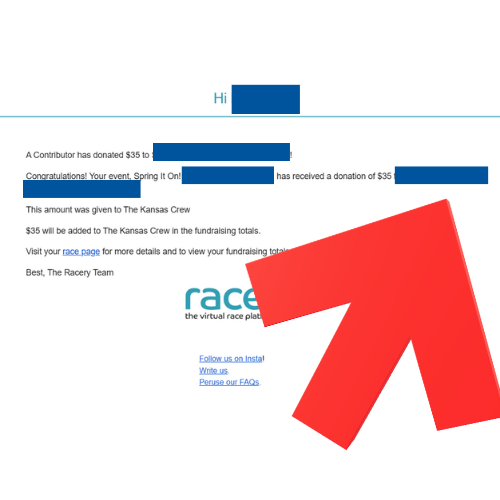
When someone donates to your race, Racery sends you a notification email. The donor’s name appears in the email body — look for “A Contributor has donated…”
Option B: Check the Race Proceeds report
From your sponsor dashboard, open the Reports dashboard and download the Race Proceeds report. This lists every donation with the donor’s name, amount, and date.
Step 2: Find the Payment in Stripe
- Log in to your Stripe account at dashboard.stripe.com
- Go to Payments in the left sidebar
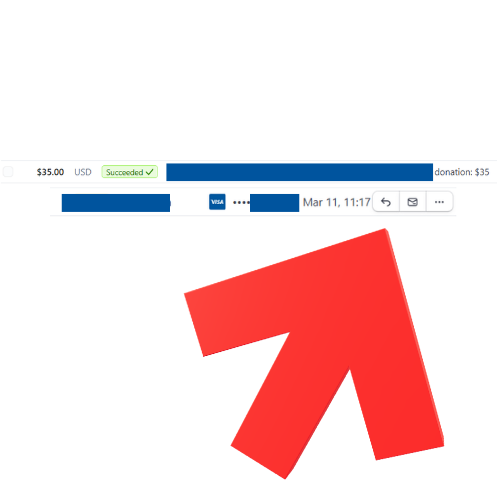
- Search for the donor by name, amount, or date
- Click on the matching payment — you should see the amount, “Succeeded” status, and
donationlabel
Step 3: Issue the Refund
- Click the refund button (↵) on the payment row
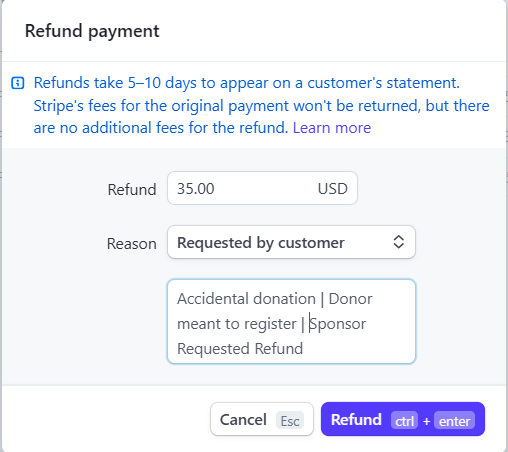
- Verify the refund amount (it should match the original donation)
- Select a reason — Requested by customer is appropriate for accidental donations
- Optionally add a note (e.g., “Accidental donation — donor meant to register”)
- Click Refund to confirm
What to Know
| Detail | Info |
|---|---|
| Refund timing | 5–10 business days to appear on the customer’s statement |
| Stripe processing fee | Stripe’s original processing fee (2.9% + $0.30) is not returned to you, but there is no additional fee for the refund itself |
| Partial refunds | You can refund less than the full amount if needed |
| Racery fundraising totals | The donation will still appear in Racery’s fundraising totals until the next data sync. This is cosmetic only — the money has been returned |
Need more help? Stripe’s full refund documentation is available at support.stripe.com/topics/refunds.
Related Articles
- Stripe Connect Dashboard — setting up your Stripe connection
- Reports Dashboard — downloading Race Proceeds and other reports
- Troubleshooting: Refunds — racer-facing refund policy and how-to
Contact support if you have questions.