

Pindrop Management Dashboard
Overview
Pindrops are points of interest that appear on your race's interactive map. Each pindrop can include a label, description text, image, and sponsor logo. Use them to highlight landmarks, sponsor locations, checkpoints, or fun facts along the virtual route.
Accessing the Dashboard
From your race's dashboard hub, click Pindrop management in the sidebar under SETUP.
What Are Pindrops
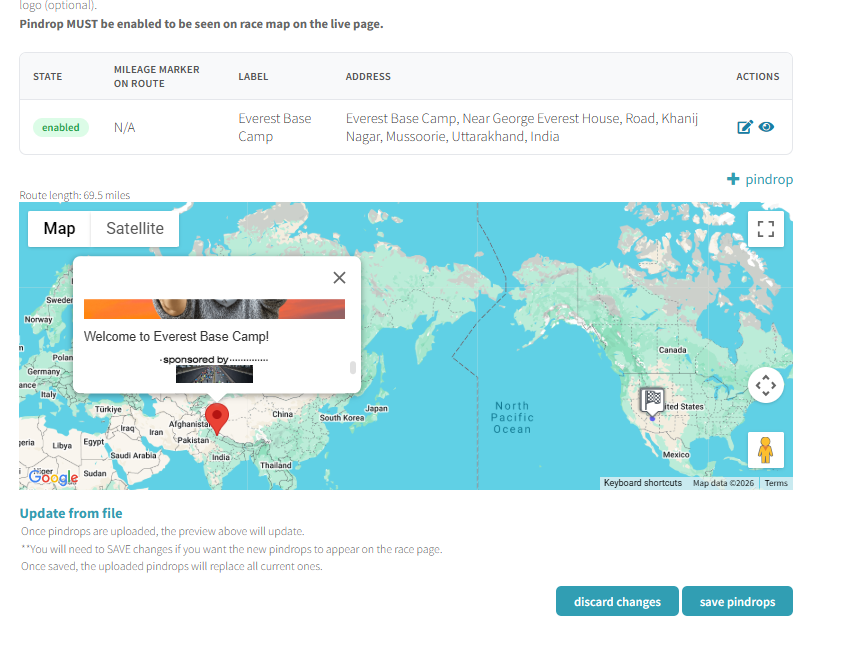
Pindrops are geographic markers placed along (or near) your route. When a racer clicks a pindrop on the map, they see a popup with the label, description, image, and optional sponsor logo. Pindrops must be enabled to appear on the live race page.
Adding a Pindrop
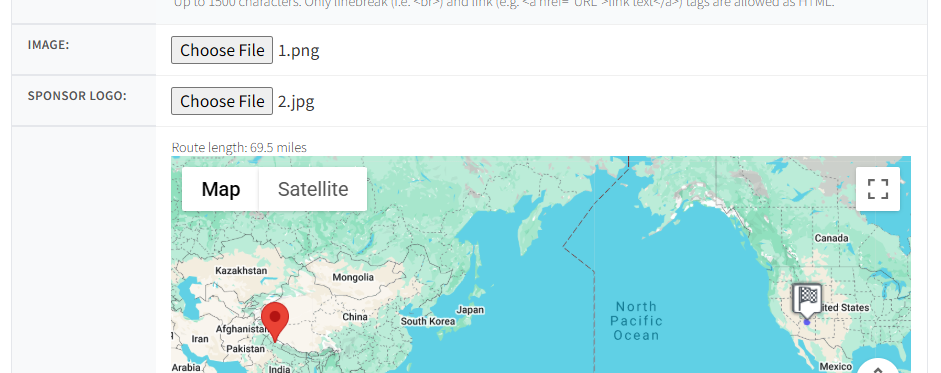
Click + pindrop in the upper right to open the editor. Each pindrop has the following fields:
| Field | Description |
|---|---|
| Enabled | Checkbox — pindrop must be enabled to appear on the live race map |
| Address | Type an address to geocode the location. Don't have an exact address? Add a nearby one, then drag the pin to the desired spot |
| Label | Short name shown on the popup (e.g., "Everest Base Camp") |
| Text | Description up to 1,500 characters. Supports line breaks (<br>) and links (<a href="">) |
| Image | Upload a photo to display in the popup |
| Sponsor Logo | Optional — upload a sponsor logo shown below the text |
Pindrop Table
All pindrops for your race appear in a table with the following columns:
| Column | Description |
|---|---|
| State | Enabled or disabled |
| Mileage Marker on Route | Where along the route the pindrop falls (N/A if off-route) |
| Label | The pindrop name |
| Address | Full geocoded address |
| Actions | Edit and preview icons |
Map Preview
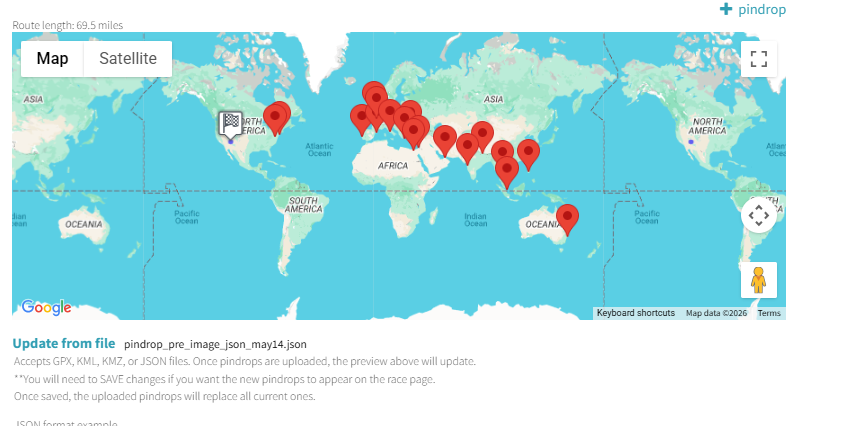
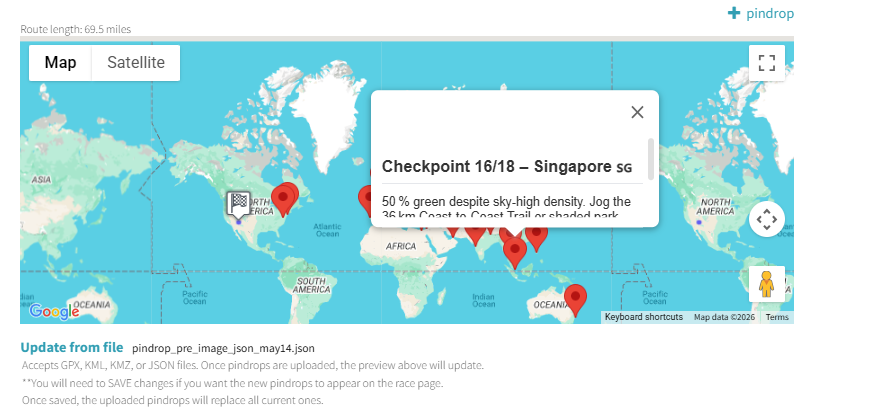
Below the table, an interactive Google Map shows all your pindrops. Click any pin to preview its popup exactly as racers will see it. The map also displays the route length (e.g., "Route length: 69.5 miles").
Bulk Upload from File
Instead of adding pindrops one by one, you can upload them in bulk using the Update from file section at the bottom of the dashboard. Accepted file formats:
- GPX — GPS Exchange Format
- KML — Keyhole Markup Language (Google Earth)
- KMZ — Compressed KML
- JSON — Racery's native format
JSON Format
The JSON format uses a waypoints array:
{"waypoints": [{"enabled": true, "address": "New York City, New York, USA", "lat": 40.7128, "lon": -74.006, "label": "New York City", "text": "..."}]}Next Steps
Route Management
Edit the route segments that pindrops are placed along.
Route Builder Basics
Design custom routes with segments and milestones.
Adding Milestones
Add milestone markers that unlock stories along the route.
Contact support if you have questions.